I was working in Tracey's class today and she is going to work with her students on adding decimals. She wanted some activities where this could be integrated with money. There are lots of money game websites but they are all either American dollars or UK pounds. 'Change for the Better is hosted on the NZ Maths site and it has lots of great games we can use in our classroom. I have put together this workshop with some of their games and links to other sites that will help with the teaching of decimals and money. To download this workshop so that you can edit it, click on the black download button if you are a GAFE school then just go File-Make a copy and rename it or go File- Download as PowerPoint

Showing posts with label inclass. Show all posts
Showing posts with label inclass. Show all posts
Friday, 11 March 2016

Tuesday, 1 July 2014
Calendar Art and Photo Montages
Jane has some fantastic art created by students in her class. I have just discovered a great Photo Montage app called Juxtaposer, so I suggested to her that we could superimpose the children onto the art work. She has decided this would be a great way to do their 'Calendar Art' this year. Calendar Art is a fundraising activity that schools do where they take the children's art and make it into individual calendars that family and friends can buy.
The examples below show how it can be done. Jane is going to get her children to dress up as Medieval Characters, take their photos and then superimpose onto photos of their artwork.
The examples below show how it can be done. Jane is going to get her children to dress up as Medieval Characters, take their photos and then superimpose onto photos of their artwork.
Friday, 20 June 2014
"Miss! I've turned my brain on..."
"Miss! I've turned my brain on..."
This is what one young man said to his teacher and me after I had taught him and another student using my favourite 'Free' maths apps.
While I was talking with the teacher I noticed that he was having difficulty with his maths. I called him over and started him on Educreations. He needed help with some of his 5 timestables so with the help of the Number Rack app (or he could have used the Number Frames or Number Line) he wrote the problem on Educreations and solved it using Number Rack.
 He knew what 5x5 was but not 5x3 so he used Number Rack to solve it.
He tried several other problems and using Number Rack in his own way he was able to solve them.
A little later I demonstrated to the teacher how she could use her projector with the iPads for teaching. I have Airserver on my laptop which enables me to mirror iPads to my laptop which is connected to the projector.

Both students airplayed from their iPads to my laptop and we were able to see both students solving the problem at the same time.
 After showing students how to move the pieces across and how to write, they started solving the problem themselves.
I did not have to tell them how the rods and ones would stick together if you move them close to each other, they worked that out. It was interesting to see problem after problem how they started to reorganise the pieces into ways that worked for them.
 Eventually I showed them how to select all the ones by drawing a circle around them (not with the pen tool, just trace around with your finger and a dotted circle will appear) and then tap on the join symbol at the bottom of the screen which takes 10 ones and joins them up into a 10 rod leaving behind any ones.
Once they discovered that they were away and solving the problems was performed very quickly and accurately.
Shortly after that the boy who had been having the problems in maths stated "Miss! I've turned my brain on!"
I went and worked in another classroom that was working on Problem Solving. The students were working on large pieces of paper. Some of the students were having trouble verbalising their thinking.

At the same time I did the problem with a bit of App Smashing.
I took a photo of the problem that was up on the IWB.
I started to solve it and used Number Pieces to solve the first part. I then took a screen capture and inserted it into Educreations.
I used the text tool on Educreations to summarise my first lot of solutions. (I could have at this point recorded my voice explaining what I have found out so far).
I then used Number Frames to solve the next part of the problem. Again at this point I could have recorded my voice.
The only issue I have with Educreations is that you can't save without recording your voice, and you can't edit once it is saved. You can take a screen capture though (Home and Power Button pressed together). You could use Show Me but there is no text tool, but it will allow you to save without voice and to edit later.
I showed this to the teacher after the session and she is very motivated to try it with her students.
If you do want to edit and add voice later I would recommend the App Explain Everything

This is what one young man said to his teacher and me after I had taught him and another student using my favourite 'Free' maths apps.
While I was talking with the teacher I noticed that he was having difficulty with his maths. I called him over and started him on Educreations. He needed help with some of his 5 timestables so with the help of the Number Rack app (or he could have used the Number Frames or Number Line) he wrote the problem on Educreations and solved it using Number Rack.
He tried several other problems and using Number Rack in his own way he was able to solve them.
A little later I demonstrated to the teacher how she could use her projector with the iPads for teaching. I have Airserver on my laptop which enables me to mirror iPads to my laptop which is connected to the projector.
Both students airplayed from their iPads to my laptop and we were able to see both students solving the problem at the same time.
I did not have to tell them how the rods and ones would stick together if you move them close to each other, they worked that out. It was interesting to see problem after problem how they started to reorganise the pieces into ways that worked for them.
Once they discovered that they were away and solving the problems was performed very quickly and accurately.
Shortly after that the boy who had been having the problems in maths stated "Miss! I've turned my brain on!"
I went and worked in another classroom that was working on Problem Solving. The students were working on large pieces of paper. Some of the students were having trouble verbalising their thinking.
At the same time I did the problem with a bit of App Smashing.
I took a photo of the problem that was up on the IWB.
I started to solve it and used Number Pieces to solve the first part. I then took a screen capture and inserted it into Educreations.
I used the text tool on Educreations to summarise my first lot of solutions. (I could have at this point recorded my voice explaining what I have found out so far).
I then used Number Frames to solve the next part of the problem. Again at this point I could have recorded my voice.
The only issue I have with Educreations is that you can't save without recording your voice, and you can't edit once it is saved. You can take a screen capture though (Home and Power Button pressed together). You could use Show Me but there is no text tool, but it will allow you to save without voice and to edit later.
I showed this to the teacher after the session and she is very motivated to try it with her students.
If you do want to edit and add voice later I would recommend the App Explain Everything


Friday, 25 April 2014
Monday, 18 November 2013
Boys, reading and iPads
 I read this article 'Boys take to reading-when it's on an iPad' and I was inclined to agree with the author. In my own experiences teaching recently at Clevedon school in a Year 5/6 class, my previous teaching experiences with iPads, the demonstrations I have shown and the observations I have made in classes this is what I have seen. Boys like reading on iPads, of course you have to choose the books that are likely to interest them but there are some very useful features on the Kindle app that I particularly like and bring reading to life.
 Using the example of 'Stormbreaker' $5.34 (US) a great book to entice boys to read (girls like it too). The main character 'Alex Rider' is a like a 'junior' James Bond. When students came across a word that they didn't understand I asked them to highlight it in a particular colour, the dictionary definition would come up as well. They then have to enter that meaning (in their own words) into their vocab log (a Google Spreadsheet). They would then use the word in a sentence. I limited this to 10 words a chapter. When the students met with me they would share which words they had difficulty with.

Some dictionary meanings would have more than one meaning so we would have to look at all the meanings and work out which one worked in the context of the story.
A very useful visual feature is found when you tap on a word in the text, the dictionary meaning appears down the bottom of the page but there is a link to Google and Wikipedia as well. Tap on Google and links will appear, in the example below we tapped on Waterloo (for Waterloo Station), there was no link for Waterloo Station so we added the word Station in the search field...now we have images, links and maps all about Waterloo Station. This is a great way of bringing a book to life where students can see where and what these things look like. Tapping on Wikipedia provides more information and images.


- Showme
- Educreations
- Notability

Apples iBooks that comes with the iPad does a similar thing. You can highlight words, tap on a word to get a dictionary meaning, and tap on Search Web to go to Google. The difference between this app and Kindle is that iBooks 'Search the Web' feature takes you out of the iBook app where Kindle keeps the Google search within the app and you tap the blue Done button when you want to return back to the story.
So do try this with your students, especially using the integrated 'Google' and 'Wikipedia' to find images, maps and more information about the word. You will see their vocab knowledge grow and they will become more independent about finding meanings for themselves.
Wednesday, 27 March 2013
Observation Holy Cross #4
Sarah is finding that her students are more independent now and don't rely on her to tell them what to do next. They are experimenting with devices and are now thinking about what they need to use for the purpose of their learning. I have observed in both classes how fast they are at using the iPads, their fingers fly moving from app to app.
Sarah is finding that students' work is of a much higher standard, the content is a lot better. Parents have told her that their children talk about what they do at school more than what they have ever before. She has noticed that there is a lot of discussion and sharing amongst the students as they talk about how they going to approach their work.
In reflecting on where the students were at the beginning of the year she said that students found it hard to have choices as they were used to being told what to do, now they know how to cope. I saw that with the task Sarah set today...students were given a time limit, expectations and from that they chose how they were going figure out how they were going define, find and present. Every group of 2 or 3 worked in a different way. Their task was to present what they knew about the '12 stations of the cross' and what was the meaning of each station to them.
Examples of what the students came up with are


Diane's room layout is working well and she now has a couch that is hugely popular with the
students. She has been allowing students to have choice over what activities they want to do during Reading and Maths.
Because it 'Holy Week' for the Catholic church, students do a lot of work around the '12 Stations of the cross' so Diane had set the same task Sarah had. We had been talking about statistics and Diane was talking about how students could present their knowledge. I saw a great opportunity to talk about infographics. Diane could see how that could fit in with what she wanted students to do that afternoon. I shared with the students what infographics needed and we looked at the structure slideshow example. The students got a lot of good ideas of how to use symbols and different ways to show timelines.
I suggested to Diane that she made it a regular thing during the week to look at different infographics and analyse them using the examples I have curated on scoop.it
Sarah is finding that students' work is of a much higher standard, the content is a lot better. Parents have told her that their children talk about what they do at school more than what they have ever before. She has noticed that there is a lot of discussion and sharing amongst the students as they talk about how they going to approach their work.
In reflecting on where the students were at the beginning of the year she said that students found it hard to have choices as they were used to being told what to do, now they know how to cope. I saw that with the task Sarah set today...students were given a time limit, expectations and from that they chose how they were going figure out how they were going define, find and present. Every group of 2 or 3 worked in a different way. Their task was to present what they knew about the '12 stations of the cross' and what was the meaning of each station to them.
Examples of what the students came up with are

- rewrote the words to Impossible by Shontelle and made their own lyric video by recording themselves playing the soundtrack, using the piano on Garageband, and writing the lyrics on Keynote to play at the same time


- one group made a PowerPoint where they found the information on the internet they needed, I got them to put the information into the 'Finding Relevant Text' Graphic Organiser, highlight the keywords and then write the text in their own words using the keywords

- some did a TV news report where they recorded themselves reading the news using the iPads and did further editing in Moviemaker

- one group did a front page for a newspaper

- a couple of groups made a movie acting out the the different parts of 12 stations
- several groups used Inspiration maps for recording their ideas
Diane's room layout is working well and she now has a couch that is hugely popular with the
students. She has been allowing students to have choice over what activities they want to do during Reading and Maths.
Because it 'Holy Week' for the Catholic church, students do a lot of work around the '12 Stations of the cross' so Diane had set the same task Sarah had. We had been talking about statistics and Diane was talking about how students could present their knowledge. I saw a great opportunity to talk about infographics. Diane could see how that could fit in with what she wanted students to do that afternoon. I shared with the students what infographics needed and we looked at the structure slideshow example. The students got a lot of good ideas of how to use symbols and different ways to show timelines.
I suggested to Diane that she made it a regular thing during the week to look at different infographics and analyse them using the examples I have curated on scoop.it
Thursday, 21 March 2013
Observation Clevedon #5
Rachael has fine tuned her Daily Five options and shared with the whole class. She is just working with Reading at the moment. Students are able to access this through Google Docs. Her aim is to develop independence and self management.
 I worked with a reading group today in Rebecca's room, with a particularly difficult text on estuaries (The secret life of Estuaries. Connected 3 2006). Students had their iPads and journals and we worked at the TV Learning Zone. Students had the Dictionary app open so that they could look up words that they didn't know.
When I do this activity again I will get students to record in Notability what words they checked, and a followup task would be to find the suitable dictionary meaning using Dictionary (or search in Google with search term being the 'word' and Define). They could write the sentence from the book and replace the dictionary word with a synonym if applicable.
Every now and then I would ask a student to mirror their iPad so that we could discuss the dictionary term they were looking at.

There were 2 diagrams in the story. I got them to take a photo of the first diagram and annotate the different parts of it. When we came to the next diagram they did the same thing. The diagrams were a visual aid of the text relating to the text they had just read. Some of them started to jot down some notes as they would have to write an explanation later.


When I do this activity again I will get students to record in Notability what words they checked, and a followup task would be to find the suitable dictionary meaning using Dictionary (or search in Google with search term being the 'word' and Define). They could write the sentence from the book and replace the dictionary word with a synonym if applicable.
Every now and then I would ask a student to mirror their iPad so that we could discuss the dictionary term they were looking at.

There were 2 diagrams in the story. I got them to take a photo of the first diagram and annotate the different parts of it. When we came to the next diagram they did the same thing. The diagrams were a visual aid of the text relating to the text they had just read. Some of them started to jot down some notes as they would have to write an explanation later.


Monday, 18 March 2013
Observation at Holy Cross #3

Students are still using the Pic Collage app and have become rather adept at using it for lots of different reasons. One of the tasks today was to retell the story of the Prodigal son and then publish it so it looks like a board game. A couple of boys did a lot of problem solving, made their own squares and came up with this result.


 I showed some students how they could put down their ideas quickly into a Graphic Organiser. I made it in Inspiration 9.1 on the computer and then exported to Inspiration Maps, I added it as a download to my recount page on my Graphic Organiser wiki, so the students went to that page in Safari, clicked the download and then tapped on 'Open in Inspiration'. There are still a couple bugs in Inspiration Maps (which are going to be addressed in the next update). When you download a map from a website or Dropbox, make sure once it is open that you tap the Home button before making any changes to it. Then re-open it from the home page. If you don't when you have added all your thoughts and tap the home button, the map will completely disappear. Also you can't make the boxes bigger, so if they are going to write a lot they may need to insert a new symbol and reconnect it. But as I said before, these issues are going to be fixed. The students did enjoy writing up their ideas like this and the scaffolding they got from the hints at the side.
Sarah has started her management system for writing, where she has set her expectations, students have a timeline and they have to show where they are on the timeline by moving their name.
Sunday, 17 March 2013
Observation 'The Gardens' 12 March 2013
Evernote and Edmodo are being used by some of the teachers in this school. Tracy in particular has lead the movement amongst the e-Learning teachers with Edmodo. Most of her Year 5/6 class are in their second year of e-Learning and it shows. The students are very quick and adept with the technology.


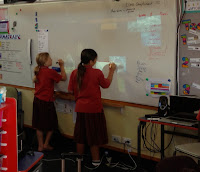 Jan's Year 5/6 class has some boys that are 'blossoming' using iPads. They are more focussed, on task, engaged and interested in what they are doing. She had no problems setting up her room this year and feels very comfortable with the way it works. I noticed that the students were using the whiteboards for their learning rather than the teacher.
 Jan wanted her students to practise their handwriting with Drawing apps on the iPad. The students mostly chose Drawing Pad. I suggested using Notability with lines and also suggested that they record themselves in Screen Chomp writing the alphabet so that they could see what letters they are not forming correctly. Once they had their practice in Notability, they could save into a Handwriting folder, their best pieces of writing could be shared to Evernote.
The last 2 years the e-Learning teachers have been using Google Sites for their digital portfolios. They have decided it was too cumbersome so they are using Evernote which can be used both on computers and devices. Most creative apps will share to Evernote, so students can store best evidence of their progress in notebooks in Evernote. Work that has been hand done can be photographed and added as well. Students can also use the recording option to record their feelings about their work.

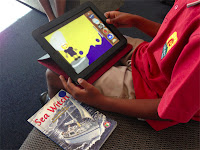 During reading time students were creating their graphics in Drawing Pad based on their reading book Sea Witch. Once they made the individual pictures they added them to Comic Life.
One of Tracey's students showed me how to install the Evernote clipper to Safari on the iPad


 Jan's Year 5/6 class has some boys that are 'blossoming' using iPads. They are more focussed, on task, engaged and interested in what they are doing. She had no problems setting up her room this year and feels very comfortable with the way it works. I noticed that the students were using the whiteboards for their learning rather than the teacher.
The last 2 years the e-Learning teachers have been using Google Sites for their digital portfolios. They have decided it was too cumbersome so they are using Evernote which can be used both on computers and devices. Most creative apps will share to Evernote, so students can store best evidence of their progress in notebooks in Evernote. Work that has been hand done can be photographed and added as well. Students can also use the recording option to record their feelings about their work.

 During reading time students were creating their graphics in Drawing Pad based on their reading book Sea Witch. Once they made the individual pictures they added them to Comic Life.
One of Tracey's students showed me how to install the Evernote clipper to Safari on the iPad
- Go to http://mergy.org/2012/05/use-the-evernote-clipper-with-safari-on-ipad-and-iphone/ this has the instructions for the following
- In another tab go to http://www.evernote.com and bookmark it, rename it 'Evernote Clipper'
- Go to this link http://mergy.org/wp-content/uploads/2011/05/iOSEvernoteWebClipper.txt copy the code, tap on Bookmarks and Edit, tap on Evernote Clipper, paste code
- From now on when you select Bookmark - Evernote Clipper, a new window will open where you can choose notebooks and tags
Saturday, 9 March 2013
Observation Week Clevedon
The teachers are discovering that the Google Drive app is not perfect. You can't copy a document in Drive, students need to go to Chrome and open the desktop version. Students had problems signing in and you can't see the collaborators on your documents in real time, you have to tap sync to see what they have added. My suggestion is to use the Google Drive app for getting down ideas, editing, and sharing. If the teachers want the students to do peer editing, it would be best to use the class laptops so that they can make full use of the commenting feature.

Students are making choices in what apps they use for their learning. One group of students were splitting words into syllables and several of them chose Notability, where they typed the words and use the pen tool to draw the lines. Others were writing in notes or writing in their books.
 I liked this short maths starter called 10 pin bowling The students chose an app to record their answers and they had 5 minutes to get rid of all of the pins. Apps they could have used were Showme, Educreations, Screen Chomp or Notability.


The classroom wikis ( Rachael and Rebecca) are being referred to all of the time and resources are being added constantly for student use.

 The teachers have been sharing PDF worksheets to Dropbox for the students to work from and students record their answers in their books. They could also import it to Notability and record their answers using the pencil or text tool.
 The use of Evernote has started in one classroom where each student has a notebook where they save their research information. Students found out how to add graphics, type notes, add tags and they are going to learn how to use Evernote to reference their research.
 To get to know the iPad one of the teachers has made up an iChallenge for both classes. Students had to fill in what they were able to do, they used the emoji symbols to record their answers. Following on from our discussion about monitoring the options students choose, Rachael is trialing this spreadsheet with a group to see if they can self manage themselves and their tasks. We look forward to the end of the term to evaluate how it worked.

Students are making choices in what apps they use for their learning. One group of students were splitting words into syllables and several of them chose Notability, where they typed the words and use the pen tool to draw the lines. Others were writing in notes or writing in their books.


The classroom wikis ( Rachael and Rebecca) are being referred to all of the time and resources are being added constantly for student use.

 The teachers have been sharing PDF worksheets to Dropbox for the students to work from and students record their answers in their books. They could also import it to Notability and record their answers using the pencil or text tool.
Tuesday, 5 March 2013
e-Learning at The Gardens
Most of the students in the two year 7/8 rooms have been going 2 years in e-Learning classrooms, so the teachers have found the beginning of the year with students and devices hardly any problem at all. The students are all very proficient at using their iPads and move freely around the classrooms using all sorts of digital devices and pen and paper.
 Christine makes extensive use of Edmodo where she shares almost all of the students 'Learning assignments'. Students can choose what programmes they want to use to show off their learning and share back to Edmodo. Children use the chat and messaging features purposely to discuss learning.
Some of the apps the students like to use are

They also use Google Sites for blogging and occasionally use Google Docs mostly on the computers rather than the iPad.
Christine still does handwriting with all of the students for 2 reasons
Christine feels that she does a lot more marking in an e-Learning classroom, as students tend to finish work more quickly because they have typed it up once, had it edited and then they finish with the final product. But to balance that, Anna feels that she is so much freer in the class to work with individuals, pairs or groups as the students are so much more independent and self managing.
Some of the apps the students like to use are

They also use Google Sites for blogging and occasionally use Google Docs mostly on the computers rather than the iPad.
Christine still does handwriting with all of the students for 2 reasons
- Parents are concerned that students won't be able to write when they get to Secondary school
- Some of the students writing does need to improve legibility

Christine feels that she does a lot more marking in an e-Learning classroom, as students tend to finish work more quickly because they have typed it up once, had it edited and then they finish with the final product. But to balance that, Anna feels that she is so much freer in the class to work with individuals, pairs or groups as the students are so much more independent and self managing.
Sunday, 3 March 2013
Oberservation Week 4 Holy Cross


Later in the day they were making choices about how they were going to record their information. I introduced one child to Pic Collage, who then started teaching another.
I loved seeing the individual creativity that was coming out, they were choosing the digital tools they wanted to use.

Sarah had extra students in her class today (40 in total). But still everybody worked well, with students moving between iPads and computers.
These students were writing up important events that happened in the years since they were born. I told them about 'This day in history' and they were able to track events and complete their tasks.

Subscribe to:
Posts (Atom)