Wednesday, 13 March 2013

Students and Researching

I came across the following infographic from Education Database Online Blog about students using technology to research.

Digital Research Infographic

A lot of the points I agree with. Students in primary and intermediate schools all use Google and Wikipedia for researching. Most of the researching I see is of a poor standard
  • students ask questions in the search engine
  • students don't know what key words are
  • a lot of what is found is regurgitated in a PowerPoint or a Keynote with words students obviously don't know the meaning of
  • it is all lower end thinking, there is no new knowledge or meaning
What I don't agree with is that Technology is making it harder for students to research. In my travels my observations are is that teachers do not teach research skills, they assume that students know how to research. Researching is considered Googling! The statement that the amount of information is overwhelming is due to the poor research skills that turns up millions of results. Another statement that it is harder for students to find credible sources is also down to teaching students how to recognise from URLs what looks like credible sites, and then searching the page itself to see if it is a reputable site.
Is the internet distracting? Are devices and their apps distracting? Yes they are! So now we have to teach self control to students, and reinforce on task behaviour.
I disagree with 'technology is damaging students' attention spans'... if anything it is improving it. In the last two weeks I have been in six different schools. My observations were of engaged, interested students who were learning. All of the schools were using devices to differing levels, all have had to discuss with students about appropriate use of devices and apps. Several teachers have told me that in particular several of their boys who were not doing well in traditional classrooms have been turned around with using devices.
I believe that technology is making it easier to research if you have the skills. Devices and apps like Evernote that allow you to store, cite and organise information needs to be taught to teachers and students alike. Google runs a free online PowerSearching Course which all teachers should do.

Let's teach the basic research skills! The following links are to a Higher Order Thinking Resource wiki that I am developing, that makes use of Graphic Organisers to scaffold student learning

Tuesday, 12 March 2013

Coggle and Mindmapping

Coggle is not a Google app but it works with a Google Sign in. You can create simple mindmaps and share them with others. I can see students using this as a quick easy way of getting all their thoughts down, save as a PDF or a graphic and then uploading to Evernote, Google Docs or any other application. You cannot use it on an iPad in Safari but you can on the Chrome App. The Puffin app (Free or NZ$4.19 for iPad) will also allow you to add content on the iPad.

Saturday, 9 March 2013

Observation Week Clevedon

The teachers are discovering that the Google Drive app is not perfect. You can't copy a document in Drive, students need to go to Chrome and open the desktop version. Students had problems signing in and you can't see the collaborators on your documents in real time, you have to tap sync to see what they have added. My suggestion is to use the Google Drive app for getting down ideas, editing,  and sharing. If the teachers want the students to do peer editing, it would be best to use the class laptops so that they can make full use of the commenting feature.


Students are making choices in what apps they use for their learning. One group of students were splitting words into syllables and several of them chose Notability, where they typed the words and use the pen tool to draw the lines. Others were writing in notes or writing in their books.


I liked this short maths starter called 10 pin bowling The students chose an app to record their answers and they had 5 minutes to get rid of all of the pins. Apps they could have used were Showme, Educreations, Screen Chomp or Notability.


The classroom wikis ( Rachael and Rebecca) are being referred to all of the time and resources are being added constantly for student use.


The teachers have been sharing PDF worksheets to Dropbox for the students to work from and students record their answers in their books. They could also import it to Notability and record their answers using the pencil or text tool.

The use of Evernote has started in one classroom where each student has a notebook where they save their research information. Students found out how to add graphics, type notes, add tags and they are going to learn how to use Evernote to reference their research.


To get to know the iPad one of the teachers has made up an iChallenge for both classes. Students had to fill in what they were able to do, they used the emoji symbols to record their answers. Following on from our discussion about monitoring the options students choose, Rachael is trialing this spreadsheet with a group to see if they can self manage themselves and their tasks. We look forward to the end of the term to evaluate how it worked.

Wednesday, 6 March 2013

Writing, Reading and Boys

I have had several people at lots of different schools talking to me about boys and literacy and how they are not doing so well according to the benchmarks they are supposed to meet. When I am in classrooms and see the types of activities that the students are doing, most of the time they are boring, prescriptive tasks that have been given to students for decades to do.
There are lots of great resources out there that have great activities that you can do with children. Some of my favourites come from Sheena Cameron who is incidentally publishing a new book on Writing this year. But we all know 'technology engages boys'. Give them a device, use your imagination and think of tasks that will grab them.

Examples I have seen recently

Task:
read through your story with your buddy and find the long 'a' vowel sounds
Observation: 
Let's put the books on our head and balance, pick up debris from the ground and flick it, annoy somebody close by, giggle over something funny one of them said (sound familiar?)
So why are they doing that? They are bored, it is not engaging, they can't see the worth of it.
Suggested Solution: 
give them a device (iPod Touch, iPad, laptop with camera) Task is now to record yourself saying the words, one person can take notes and write down the words with the long vowel sound, the other person can be saying the words. Yes, there will be laughter, and pulling of faces, but give them an expectation and a time limit 'I want you to find 20 long 'a' vowel words in 5 minutes, set your timers now.
Predicted Outcome: 
they will have had fun, they will be engaged in the task, they will be reading, they will discover their mouth shape changes when they say the words

Task:
read your story with your buddy
Observation:
exactly the same as the observation before. When I have noticed boys to be engaged in buddy reading is when they are looking at high interest topic books such as space, dinosaurs and cars and trucks.
Suggested Solution
For buddy reading choose high interest topic books. Let them read the interactive books on the iPads, iPod touches, let them read some of the books online on the computer together.
Let the students use Sock Puppets to record themselves taking turns in reading. Apart from the laughs they will get from hearing the squeaky voice, they will hear if they are reading fluently.
Predicted Outcome:
they will talk about what they are reading, they will be engaged in their learning. They will be reading. They can share back to the group/class.

Task:
answer comprehension questions in their books
Observation:
5 minutes have gone by and they have written the date, and the number 1. They have discussed what pen or pencil they will use, they will have searched everywhere for a ruler...
Suggested Solution
Use a simple Graphic Organiser like Expanded Question or the Notability app where they can take a photo of the questions and type in their answers
Predicted Outcome
Students will stay on task and want to get started on their work


Task
Printed Worksheets
Observation
Some students like worksheets. A lot don't really care for them. I see grimaces on faces, then there becomes the long hunt for the missing pen/pencil that was there 30 seconds ago. And while we are looking for the pencil/pen we happen to drop/misplace the worksheet and will need to search or berate the person next to us for having/hiding our worksheet. Once they get to their table/desk 5 minutes later the teacher is berating them for not starting. Then starts the slide into the body slump as they take another 5 minutes to painstakingly write their name...sound familiar? Why are they doing that? Because the task is boring!
Suggested Solution
Interactive Worksheets in Google Docs/Word/Pages/PowerPoint/Keynote/Google Presentation. Have some comprehension questions, but some might link to a website where they have to search for something or read something related to their instructional text. Add a Graphic Organiser/s that may scaffold them in their answers. In PowerPoint/Keynote or Google presentation insert a YouTube movie with Questions for them to answer at different points. In Google Docs insert a drawing block where they can draw the answer to the question or they can use a Drawing app on their iPad and then insert the drawing into the Interactive Worksheet. Ask a question that allows them to photograph the answer. Mix it up a bit and have Word Study questions, Dictionary meanings etc where students can use dictionaries/thesaurus on devices, online, printed books.

This all might sound like a lot of work for the teacher but a worksheet in this format could become a template that could be used over and over again. And if you start this with your top group you will have the 'Interactive Worksheet' for the next reading group when they get to that level.
When planning your activities think how you could do the same thing creatively using technologies that will grab that reluctant child and engage him..

Tuesday, 5 March 2013

e-Learning at The Gardens

Most of the students in the two year 7/8 rooms have been going 2 years in e-Learning classrooms, so the teachers have found the beginning of the year with students and devices hardly any problem at all. The students are all very proficient at using their iPads and move freely around the classrooms using all sorts of digital devices and pen and paper.
Christine makes extensive use of Edmodo where she shares almost all of the students 'Learning assignments'. Students can choose what programmes they want to use to show off their learning and share back to Edmodo. Children use the chat  and messaging features purposely to discuss learning.


Some of the apps the students like to use are

They also use Google Sites for blogging and occasionally use Google Docs mostly on the computers rather than the iPad.

Christine still does handwriting with all of the students for 2 reasons
  1. Parents are concerned that students won't be able to write when they get to Secondary school
  2. Some of the students writing does need to improve legibility
She makes a handwriting PDF, using amazing handwriting worksheet maker. Students access it through Edmodo and practise their handwriting in their handwriting books.

Christine feels that she does a lot more marking in an e-Learning classroom, as students tend to finish work more quickly because they have typed it up once, had it edited and then they finish with the final product. But to balance that, Anna feels that she is so much freer in the class to work with individuals, pairs or groups as the students are so much more independent and self managing.

Sunday, 3 March 2013

Oberservation Week 4 Holy Cross

Looking around the whole Year 5/6 class I could not see one single child who was not engaged. They were working in pairs using iPads and the PuppetPals app or computers. One child used her initiative and used the notes app to record her thoughts as she was creating in PuppetPal.


Later in the day they were making choices about how they were going to record their information. I introduced one child to Pic Collage, who then started teaching another.
I loved seeing the individual creativity that was coming out, they were choosing the digital tools they wanted to use.


 Sarah had extra students in her class today (40 in total). But still everybody worked well, with students moving between iPads and computers.
 These students were writing up important events that happened in the years since they were born. I told them about 'This day in history' and they were able to track events and complete their tasks.


Students were mindmapping their ideas so I introduced one group to Popplet. The teacher set up a class account. Students can do 5 different mindmaps before they need to delete them to make room for more. So another tool was added to their digital toolkit today 'Popplet'.

Wednesday, 27 February 2013

Observations Week 6 Clevedon

Rebbecca's students are working well with the Digital Toolkit and enjoy making their own choices about how they present their work. A particular favourite is Pic Collage


Some of the other  tools they have used are
  • Kerpoof
  • Pages
  • Comic Life
  • one child has downloaded  Instacollage and uses that (I like the way students are finding apps that work for them)
Rachael had set several tasks using Google Docs today. I suggested setting up an 'Expectations' chart with the tasks so that the students would know what they were going to have to do next. She added this to her wiki along with the success criteria.
We showed the students how they could add a shortcut to the class wiki by bookmarking on the iPad home page.


Rachael's students did a journal play in a different way today. They went outside and went over it twice, and then they made a Puppet Pals movie with all 7 children participating by reading their parts. One of the students had only one line to say in the play so she made the characters move when the students read their parts. They came back in and shared through the Apple TV. The rest of the class thoroughly enjoyed the play. The children said their learning from that activity was that they could hear that they needed to add more expression to their voices and they needed to speak loudly and fluently.

Monday, 25 February 2013

Developing Self Management

What has happened since last week?
Diane's class has been trying out some of the ideas from last week and the students have particularly liked the different ways of mindmapping.


Here is an example of their 'Writing on the Window'


And an example using Post-it Notes.


What did I notice today?

Students working on nouns, adjectives, verbs and adverbs using
Popplet on
 the computer (Individuals)
Writing on the IWB (Group)
Using Notes on the iPad (individuals and pairs)
Writing in Books.


 Comfortable Learning Zones with couches and comfy chairs.

Self managing and organising where we need to be by moving name labels to the device we are going to be using.


Sarah has the Year 7 & 8 students. She has noticed how quickly they learn new skills and then adapt them to their learning. She wants to try a flexible timetable with them where they have to self manage themselves. I noticed with their work throughout the day that some could get distracted, so we need to set up a self management continuum where students move their avatars to whichever expectation they are working at. These would be aligned to their learning goals and intentions and whatever expectations that have been set up  for the students to work from.


In my travels through lots of schools, I have noticed in classrooms when students get involved in a task, that they take no notice of time unless the teacher is prompting them '10 minutes to go!' etc. In longer tasks where they may have several days, students are used to being told by teachers where they should be up to. Recently, Sarah has been saying to the students when she has set a new task to be completed in one session, "You have 'x' amount of time, it is up to you to manage this time." She is finding that most students are improving their time management as they don't want to run out of time to finish their work.
It will be interesting to see how the 'Self management Continuum' will work, particularly as I think it will encourage students to revisit what they should be achieving in their tasks.

Thursday, 21 February 2013

Management and more options

Digital Toolkit
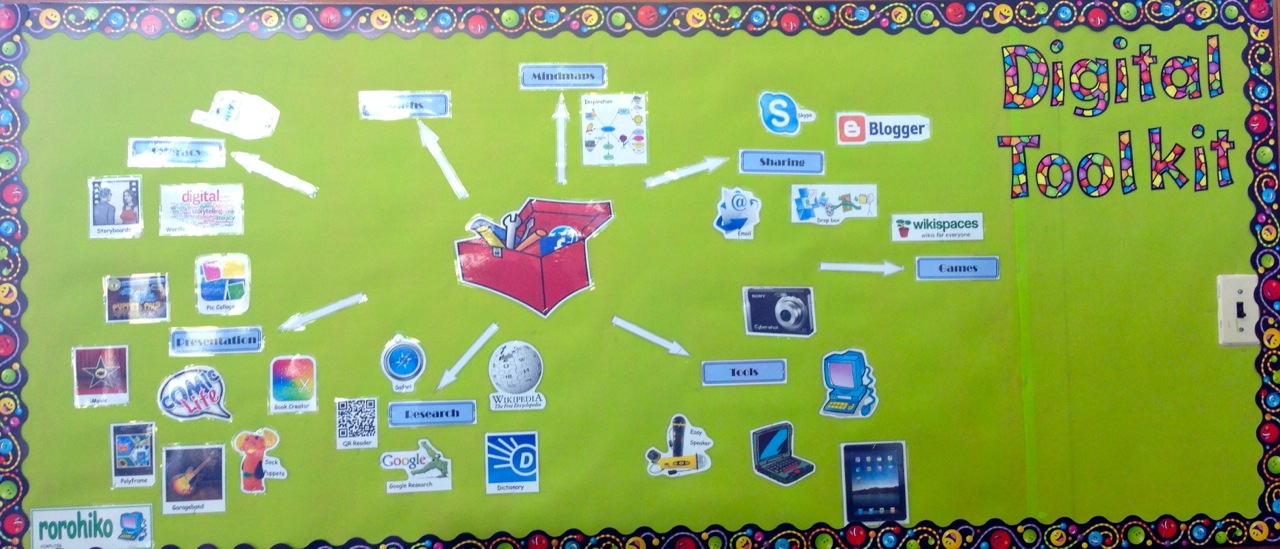
Rebecca and the students have created a Digital Toolkit display for the classroom wall and it is a great reference tool for students who are not sure what tools they can use. This will grow as more apps and programmes are added to it.

 Drafting and Mindmapping
The classes are writing autobiographies at the moment and the students have been drafting in their writing books. I showed Rebecca a way that she could use Inspiration to map out the draft and pull more ideas out, then the students can use this to help them write their drafts.


Publishing tools
Students were using a variety of publishing tools today.


Reading Options
We talked about how to give students choices at reading time. I suggested creating an Options Log where they can indicate by typing in the day they do each option. This way the teacher and the students can see what options they like the most. You can put in a compulsory component where the students know that they have to do the minimum of each option each term.

 Rachael from the other class is doing something similar using the Daily Five. She uses a tumble where she teaches a group, has a related activity and the 3rd choice is one of the Daily Five. She is going to incorporate the above idea and add different ways students can do the Daily Five in the same way.

Sharing great ideas
I suggested that the teachers make a point of letting the other one know when there is something great happening in their classroom. They could do this via Skype or send a messenger between the rooms. I think it is important that teachers see what is happening in other rooms so that they can share what works well.

Maths and management

Rebecca made a Keynote slide that had a Place Value chart on it, students retrieved it from Dropbox and she used it as a  group teaching moment.


I suggested a time management technique for students getting ready in the middle block. Rebecca has a warm up maths activity where students have to solve 20 problems in 5 minutes. I suggested that she sets the timer for 3-5 minutes and in that time students have to get ready for the subjects in that block of time,  like getting books, pens, rulers, pencils, iPads etc. Once the timer stops, restart it for the 5 minute math activity, if the students are not in their seats ready to start then they will have less time to solve the problems. They will very quickly learn to get organised early as they will not want to record a lower possible score due to being unorganised.

What has been interesting to note over the last week?
  • students are opting more often to use laptops rather than choosing iPads all the time
  • Dropbox has been an invaluable tool both to teachers and students for moving files between computers and iPad, students are teaching each other how to use it
What hasn't worked so well?
  • not all of the children have the 'paid' apps yet, which means they have less options to choose from
Student Centred teaching and learning
    Rachael in the next room has been able to get her Plasma TV and Apple TV working. I like the way she has set up the tables so it is a very functional learning zone. Students can sit around the tables looking at each other and they are also able to view the TV as well.
    Today Rachael started working with the children on their 'Peer Editing'. She made sure they knew what the focus was and students displayed the drafted/edited work from their iPads on the screen. All the students made suggestions on how to improve the writing.


    She then left them to carry on, on their own. It was interesting watching their reactions to this type of learning, they were engaged, reflective and taking ownership of their work.


    Later she used Showme in the same way where students had to show her a place value strategy on the screen. The advantage of the plasma is that the screen is very bright and clear and works really well in a group situation.

    What works well?
    • students using Notes and Notability for their long vowel work
    • Students are using Notability for their Homework Diary and their weekly spelling words are recorded in there
    • the Plasma and Apple TV is a great 'Learning Zone'
    What have we learned today?
    • all children need to learn how to troubleshoot their devices see Crashing Devices
    • all children need to come to school with iPad updates, otherwise some of the apps won't work and will crash

    Saturday, 16 February 2013

    Choices and Options

    Today I was at Holy Cross School in Papatoetoe. They have  2 e-Learning classrooms.
    Diane has a year 5/6 classroom with 8 standalone Windows computers and she can book 15 iPads. Sarah has a Year 7/8 class with 12 standalones and 8 iPads. We spent a day in the holidays talking about what e-Learning could look like in their classrooms.
    As with everything at the beginning of a new school year there are still a few problems that need to fixed.
    • wireless issues in one class
    • iPad apps that were recommended still need to be downloaded

    Diane was going to teach her whole class how to make an Inspiration mindmap; they had to find dictionary meanings to some words and then explain how that related to the topic they had been talking about. First thing we discovered was that Inspiration was not on all of the iPads. So I suggested taking a small group and using my 2 extra iPads. I demonstrated how I teach students Inspiration which takes less than 5 minutes. Soon the students were all buzzing away and I moved amongst them showing one student how to change shape and colour and suggested they group their ideas. This travelled like osmosis, and soon all of the students were expertly moving between 2 apps, finding meanings and then adding how that meaning related to their topic. They then went on to teach other students in the class how to do it. Once I saw that those students were independently working away, I noticed that other children were on computers typing up information. I suggested to them that they might try SmartArt on Word or PowerPoint...once again in less than 5 minutes those students were independently creating Mindmaps. After a few minutes I showed one student how you could change colours, look or diagram, and before you knew it each child had a different look to their diagrams.
    This lead to a discussion on different options for mindmapping

      • Inspiration on iPad
      • Word or PowerPoint using SmartArt on computer
      • large piece of paper with vivid feltips using colour to organise ideas
      • coloured post it notes on the window or on a large piece of paper
      • window writing pens
    So rather than having all the students doing the same thing, give them the choices of how they might like to record their learning.

    The students had been working on Narratives and the teacher wanted them to make a short Puppet Pals movie that showed a problem, solution and consequence, all based on their R.E (Religious Education) topic. The students already knew PuppetPals quite well and of course wanted to get straight into it. They were encouraged to storyboard their ideas onto paper and then they proceeded to make their movies.


    One boy who is a reluctant writer quickly completed his storyboard, explained it to me and then created his PuppetPal movie (with a friend). About 5 minutes later they came over to show me very proudly. I said how well they had worked and asked them, after watching it a couple of times, was there anything else they could do to it...he replied 'Improve it!' So off they went together and they found themselves a quiet space and worked on it again. Diane said this boy would normally never say that and would pass the work in finished.


    Another boy who stood out when using SmartArt for the mindmapping (his mindmap was very creative and showed off the extent of his learning) didn't want to make puppets from photos of other students, he decided he wanted to draw his main character with coloured pencils on paper, photograph it and remove the background. This whole morning session was the most engaged she had ever seen him. He was making his choices using what tools he had available to him.


    Sarah's year 7/8 were doing a variety of activities. Some were working on magazine covers for their fortnightly magazine, others were making PowerPoint presentations about what they had learned in Health.
    I moved over to one group who were doing the usual PowerPoint one picture and text box to a slide. I suggested they try out using Inspiration Maps as part of their presentation, again in just a few minutes I showed them how to use it. They made all of their slides using Inspiration. The students aren't setup with emails yet so they couldn't email the maps to the computer and insert into their PowerPoint, so in less than 2 minutes I showed them the basics of Book Creator, they made their book in just a few minutes, shared it to iBooks and then they were able to show it as a book at presentation time.


    Another group of girls were working on the IWB in Word. They had put their Weemee picture in the middle of the page and were making textboxes all around the image. I showed them how they could put that information into SmartArt and they came up with this.


    What I particularly liked about Sarah's room was how there was no 'front of the room' and no teaching station. Sarah moved around the room and sat down in lots of different areas to work with the students.
    Some of the pointers I gave her were
    • self managing tip...tell students they have X amount of time to do______. They have to work out their time management and manage it themselves. (Sarah did this with the students and it was interesting to see how conscientious they became once they knew they had only a limited time and that they were not going to get any reminders.)
    • try not to be so explicit in what you want them to 'produce', let them know what tools are available and let them choose. Set up a rubric with expectations.
    • add Inspiration Maps, Smart Art in Word/PowerPoint and Book Creator to your Student Digital Toolkit. Sarah is going to create a Visual Digital Toolkit that will remind students what tools they have available to them for their learning.

    Sarah's final comments for the day was that it was cool to see all the kids engaged and doing different things. 

    She came up with this statement that she is going to use with her students
    ' What could you use? rather than 'This is what you have to use!'

    Wednesday, 13 February 2013

    Beginning the e-Learning Classroom

    This term I am mentoring 4 teachers in 2 different schools who have started e-Learning Classrooms.
    It has been interesting to see in my first 2 classrooms what the issues and successes are so far.
    In setting up an e-Learning class after all the class rules, routines have been covered there has to be a fair bit  of time spent learning about the digital tools. Students need to know the  safety and care rules and be exposed to Digital Citizenship. Digital Toolkits will start being organised and alongside this is how to deal with troubleshooting.
    Clevedon School has 2 e-Learning classrooms
    • Year 5/6
    • iPad each (BYOD)
    • 1 iMac
    • 2 Windows computers
    • 6 laptops
    • projector
    • apple TV
    • Large screen tv
    Some of the Issues were
    • Apps crashing (this is a help diagram that I have made in Inspiration, it can be printed out and put on the wall and/or screen captured and put on a wiki or a blog as a reference) Download as a PDF or Inspiration 9 file
    •  children wanting to listen to music (which the teacher was able to fix by giving the group a splitter and they plugged in their headphones and listened while they worked)


    • Wireless dropping off or defaulting to another network that will not work which leads to students constantly telling the teacher that something isn't working. To help students become more independent they need procedures that they can follow for when 'Things just don't work'! I suggested a flow diagram that students could refer to when they lose wireless.


    Successes
    • Students getting excited when they find something that is cool (and it is actually helping their learning) 
    • Rachael and I trying out how Notability could be used for Spelling and then Rachael coming up with the idea of using Notability as her modelling book for writing and sharing as a PDF to Dropbox everyday as it gets updated. Students can look up what were the teaching points for that day
    • Students smiling while they are listening to music and working on their writing at the same time
    • Students asking questions about how they want to do something that looks like this, and how could they do it?
    • Students sharing when they find out something new. (I suggested to the teachers that they show one child first how to do something then that child will have have to go and pass it on to another)
    • Me sharing tips and tricks to one child and then telling them to pass it on 
    Rebecca has been talking about Digital Citizenship and students have mindmapped, made lists, discussed and now they are going to  make Cybersafety posters. They were given a choice of tools that they could use
    • any of the apps on the iPad
    • Standalone computers using Paint and/or Word
    • Laptops using Kerpoof or City Lego Comic
    • Paper, pencils, felt tips
     At the end of the day Rebecca summed it up, 'Well that went better than what I thought!'
    We as teachers have to let go of the traditional way of thinking that all students have to produce the same product. Let them have the choice of how they want to present their findings, they will find it more engaging and interesting. The atmosphere in the classroom was great that afternoon, everybody was busy, working on their own individual task but there was a collaborative buzz as they talked about what they were doing and asked for help from their peers and teachers.