

Friday, 23 May 2014

Wednesday, 21 May 2014
Quick Publishing Idea
 I was working with a Year 0/1 teacher who has iPads and uses them in her class for reading and maths but not for writing yet.
I suggested that she download Book Creator and use it as a quick publishing tool.
I asked her to get one child's writing book. I opened up Book Creator, tapped on the + button, selected camera and took a photo of the child's drawing.
I then tapped on the + and selected text and typed in the student's story. We then called over the student and got her to read her story to us while I recorded it in Book Creator by tapping on + and selecting Add Sound.

This is something that can be done quite quickly when conferencing with the student.
Once you have recorded all the pages you want, this can then be shared and opened with iBooks.
- this can then become an independent reading activity within iBooks
- or a shared book mirrored to a tv, IWB or projector where you can annotate
- full stops
- capital letters
- features of text
- presented via projector to syndicate or school assembly
- if students have a book each, it will show the progress of writing and drawings over a year, it can be a great assessment tool and can be shared as an ePub file to parents who can open and view if they have a smart phone/iPad/tablet or software on their computers that open ePub files
- a next step is to video the child reading their story and adding the video to the page as well
Thursday, 15 May 2014
So where do I start?
Sometimes I come across reluctance from teachers to use Google Docs with their students. Usually the main reason why is because they don't know how to use them or what to use them for. So here are some starter ideas
Drafting
With a small group of children start them off on their own Google Doc.

or the next step could be
Teacher makes comments on student Doc and students edit on Doc
Collaborative writing
Set up an Edit only doc and share with all students or post a link to the doc on your blog or wiki.
Set small achievable tasks. If students have computers at home they do this as a home learning task.

Research Topic
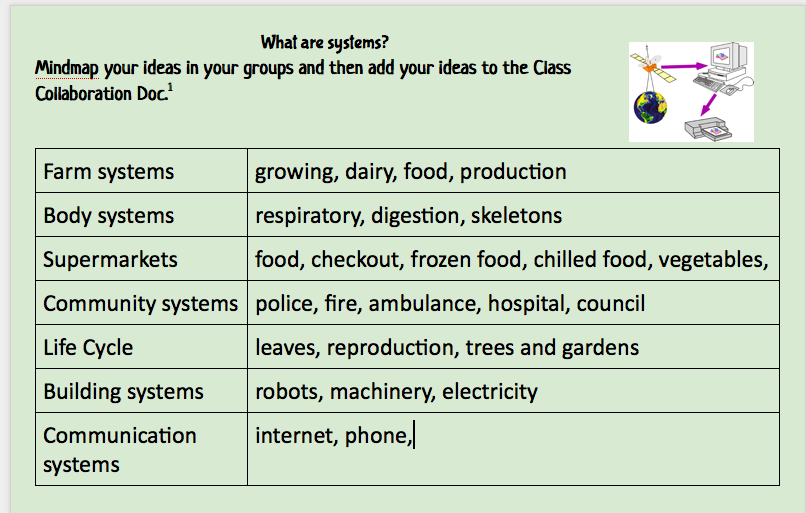
Students can mindmap/brainstorm their ideas on a question and then they can add their ideas to a collaborative Class Document of shared ideas. (Post the link on your website, or share to all students)

Drafting
With a small group of children start them off on their own Google Doc.
- Sign in
- Go to the Writing folder
- Click on Create - Doc
- Click on Untitled Doc and rename the document
- Start Writing
- This could be printed out and edited and then marked in pen
or the next step could be
Teacher makes comments on student Doc and students edit on Doc

Collaborative writing
Set up an Edit only doc and share with all students or post a link to the doc on your blog or wiki.
Set small achievable tasks. If students have computers at home they do this as a home learning task.
Research Topic
Students can mindmap/brainstorm their ideas on a question and then they can add their ideas to a collaborative Class Document of shared ideas. (Post the link on your website, or share to all students)
Publish your story
Use one page of Presentation to publish your writing
- Choose a theme
- Change the Layout to Title and Body
- Type in your title
- Type or copy/paste your story into the body box
- Add a picture
- Change theme to see if it works better
- Print out
Sunday, 4 May 2014
Don't forget about computers
An interesting phenomenon I am seeing in schools at the moment, is 5 year old children arriving not being able to use a computer. They don't know how to use a keyboard, a mouse, let alone a trackpad... but they know how to swipe! 5 year olds have been playing with smart phones, tablets and iPads for a few years now but they seem to have had very little experience with computers. I have heard New Entrant teachers saying, I don't want computers in my classroom, I only want iPads! My response to this is you must have a least one computer in the class (if not more). 5 year olds still need exposure to keyboards and they still need to develop mouse skills.
At the other end of the spectrum, I was talking to some secondary teachers the other day, who are also saying that they are starting to get students through who have very poor keyboard skills as they have been in BYOD classrooms and have used only iPads. All of the schools I work in have a balance of devices available. Even the 1-1 iPad classes will have available several laptops that students can choose to use for their learning.
So my recommendation is to still have computers in the classroom. Children need to have a choice of what device they want to use for their learning. Keyboarding practice is still needed.
These are 3 of the online keyboard games I recommend.
For more activities that you could make into a learning centre, have a look at these downloads.
At the other end of the spectrum, I was talking to some secondary teachers the other day, who are also saying that they are starting to get students through who have very poor keyboard skills as they have been in BYOD classrooms and have used only iPads. All of the schools I work in have a balance of devices available. Even the 1-1 iPad classes will have available several laptops that students can choose to use for their learning.
So my recommendation is to still have computers in the classroom. Children need to have a choice of what device they want to use for their learning. Keyboarding practice is still needed.
These are 3 of the online keyboard games I recommend.
 | |
 | See how high you can go. Make sure that you are using the correct fingers. This one also has the magic line which means letters for the left hand side of the keyboard appear on the left side of the magic line and on the right for letters for the right hand. |
 | Start at level one and work your way up to Level four. |
Subscribe to:
Posts (Atom)