- Go to Drive
- Click on file to be saved in other folders
- Press Shift - Z
Thursday, 22 June 2017
Google Tip: Saving a file to two or more folders
Has there been a time when you have wanted to save the same file to more than one folder and for it to be simultaneously updated at the same time?
Labels:
Google,
Google Docs,
Google Slides,
Google Spreadsheets,
Google Tips,
PTC 4:iii,
PTC 5:i
Tuesday, 13 June 2017
Split screen and Slide over on iPad
Split Screen and Slide over on the iPad is one of those hidden gems that most people don't know about. I had a teacher tell me today that she had one child who completes 95% of his work on the iPad because of his dysgraphia condition. But he also needs to use 2 devices particularly if he is researching as he finds it difficult to switch back and forth between apps, so he uses the iPad for his recording of information and a Chromebook for his researching. I showed them today how they could use 'Slide Over' and 'Split Screen' and only use one device.
Swipe left from the right hand side of the screen and this will show the 'Slide Over', tap and hold on the handle in the middle
and drag to the middle of the screen and this will be the Split Screen. You can see both screens and work independently in each screen at the same time. If you want to choose a different app, swipe down from the top 
You can't do this in all apps but there are loads you can split screen like... Google Docs, Slides, Sheets, Safari, Chrome, iBooks, Pages, Keynote, Numbers, Photos, Drive, Explain Everything, Dropbox, Calendar, Canva, Classroom, Edpuzzle, Word, PowerPoint, Excel, Inspiration, iTranslate, Mail, Maps, Notability, Notes, Padlet, Google translate, Twitter, Youtube and many more.
I was disappointed you couldn't use Split Screen with Kindle but what you can do is open the Kindle app, do the Slide over and open Docs, Slides, Word etc. If you want to copy some text, do the highlight - copy on the Kindle (the Slide over will disappear) and then do the Slide over and paste into the Doc.
I can see so many applications for this functionality. Be aware though that Slide View works on iPad Air, iPad mini 2 and up and the Split Screen works for the iPad Air 2, iPad mini 4 and up.
![]() |
| The Slide over works on most apps but allows only a slim view of the other app |
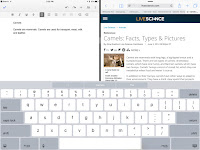
![]() |
| The Split Screen works on only some apps and gives 2 apps half the screen each |
Swipe left from the right hand side of the screen and this will show the 'Slide Over', tap and hold on the handle in the middle
and drag to the middle of the screen and this will be the Split Screen. You can see both screens and work independently in each screen at the same time. If you want to choose a different app, swipe down from the top 
You can't do this in all apps but there are loads you can split screen like... Google Docs, Slides, Sheets, Safari, Chrome, iBooks, Pages, Keynote, Numbers, Photos, Drive, Explain Everything, Dropbox, Calendar, Canva, Classroom, Edpuzzle, Word, PowerPoint, Excel, Inspiration, iTranslate, Mail, Maps, Notability, Notes, Padlet, Google translate, Twitter, Youtube and many more.
I was disappointed you couldn't use Split Screen with Kindle but what you can do is open the Kindle app, do the Slide over and open Docs, Slides, Word etc. If you want to copy some text, do the highlight - copy on the Kindle (the Slide over will disappear) and then do the Slide over and paste into the Doc.
I can see so many applications for this functionality. Be aware though that Slide View works on iPad Air, iPad mini 2 and up and the Split Screen works for the iPad Air 2, iPad mini 4 and up.
Monday, 6 March 2017
Add MP4s and .MOV to Google Slides
For privacy issues, teachers will like that they don't have to put their school or student movies onto Youtube anymore, and there is less of a process to go through.
Labels:
Google,
Google Slides,
Google Tips,
Movies,
PTC 2:i,
PTC 2:iii,
PTC 5:1
Friday, 10 February 2017
Experimenting with Rocketium
Rocketium is very easy to use. The only thing you can't do is adjust how the graphics appear with a free account. Make sure you make all graphics landscape rather than portrait, as you can see in mine that some of the portrait graphics are cut off. This is a great tool for younger students to use when publishing their inquiry or writing work. It could also be used as a great reflective tool.
Friday, 13 January 2017
Reading Activity Idea using QR codes and movie making
Create a book trailer in iMovie using the Trailer option which makes it approximately a minute long
Create the graphics by using the Free Adobe Illustrator Draw app. Follow instructions for how to use the app on this post 'Creating Clipart, Cartoons and Avatars'.
Once the movie is made and uploaded to a Youtube channel, copy the Youtube URL and make a QR code of it on QRStuff

Print out the QR code and stick it to the cover of the book. Build up a series of books that are kept in the Library.
- advertise the book for others to read
- tell the synopsis of the story
- explain one part of the story in more detail
Create the graphics by using the Free Adobe Illustrator Draw app. Follow instructions for how to use the app on this post 'Creating Clipart, Cartoons and Avatars'.Once the movie is made and uploaded to a Youtube channel, copy the Youtube URL and make a QR code of it on QRStuff

Print out the QR code and stick it to the cover of the book. Build up a series of books that are kept in the Library.
12 ways to energise Learning
I came across this infographic by Atomic Learning '12 ways to energise Learning'. Some of these you may already be doing, consider using some of the other ideas in your daily planning.
Friday, 11 November 2016
Maths: Symmetrical Patterns
Found this great app through Facebook today 'Amaziograph'. It does cost NZ $1.29 but it is worth it.You can create Geometric patterns using Reflection, Rotation, Symmetry and Kaleidoscope.
You can make mandalas. It is best used with a Stylus.
Here a few examples that show how you can do it.
How could you use this in the classroom?
- Draw Mandalas
- brain break
- symmetry and reflection activity
- make patterns for others to colour in (make a colouring book)
Friday, 28 October 2016
Creating Clipart, cartoons and avatars
I like to create my own graphics and I used to spend hours drawing them on my iPad from scratch. Then I found Adobe Illustrator Draw,a free app. Gradually I discovered loads of shortcuts that cut down my time in creating. You can upload a photo and draw over the top of it and then bucket fill it. Hide the photo and you have a great looking original graphic. Students love this and those who say they can't draw have a real sense of achievement when they finish their graphic. Now they can make their own cartoons and use their own drawings. They look great in Google Slides and Book Creator. It is a good idea to use a stylus as it gives you more control over your drawing. Here are some examples of mine.
Here is a great tutorial by Tony Vincent that explains the process.
Labels:
Art,
Book Creator,
cartoon,
Google Slides,
Google Tips,
iPad,
PTC 5:i,
PTC 7:i,
PTC 8:ii,
PTC 9:ii
Friday, 21 October 2016
Creating Teacher Portfolios
I often get asked about setting up Teacher Portfolios. Here is a tutorial for setting one up in Google Blogger.
Labels:
Google blogger,
Google Tips,
portfolio,
PTC 1:1,
PTC 4:2,
PTC 5:1
Monday, 26 September 2016
Writing Motivation idea with Google Slides
I was working with some teachers on a Reading workshop today and we came up with this idea for writing motivation using .png and .gifs.
.png files are graphics with no backgrounds and .gifs are animated graphics.
Follow the steps in this slideshow to make an animated writing prompt. This works in slides on iPad as well, but you will need to collect your images and save to your camera roll.
.png files are graphics with no backgrounds and .gifs are animated graphics.
Follow the steps in this slideshow to make an animated writing prompt. This works in slides on iPad as well, but you will need to collect your images and save to your camera roll.
Friday, 2 September 2016
Using Google Slides for Writing Motivation
This was an idea that I used to do with PowerPoint. Now I do it with Google Slides. It is a mixture of digital and analogue technologies. Students can create their own authentic writing motivation by taking photos of their environment and then using graphics to make a fictional imaginative montage. Change the view of the slide into Notes, add some lines and print out. Student's then publish their writing under the picture. See instructions below
Labels:
Google,
Google Tips,
literacy,
Publishing,
Writing
Subscribe to:
Posts (Atom)


