Friday, 3 December 2010

Using Social Media in the Classroom

Facebook is well known as personal social media. But it is also possible to be a useful tool to use in education.
Jane Danielson is documenting her school's journey into the use of Social Media and how it is becoming an integral part of the communication lines between school and community. http://janedanielson.blogspot.com/

A lot of the teachers that I work with are disappointed with parent  interaction with their blogs and wikis and would like feedback from them on children's work. Jane has discovered from the large take up of 'Liking' the school's Public page and through comments left on the school's public profile page that a lot of parents have Facebook and that they seem to regularly check it. Feedback from parents say that they like this method of communication.

How could you use Facebook in the classroom?

You can add a 'Public Profile Page' to your personal account. This is your connection to the parents in your class.This will enable you to post updates to your Public Profile page like
  • updates to wikis and blogs
  • links to websites or articles
  • reminders about events that are coming up
  • requests for parents to check student pages
How does this affect your personal Facebook?

When somebody clicks the Like button on your Facebook link, they will receive only the updates you put on your Public Profile page, they do not get your personal updates and you do not get theirs.

How do I set up a Public Profile page?
  • Log into your Facebook page
  • open another tab on your browser (Ctrl T or Command T)
  • go to this website http://www.facebook.com/pages/create.php 
  • click on Local Business, choose Education
  • Type in the Page Name in space provided 
  • Tick the 'I'm the official representative...'
  • Click Create Official Page
  • Click on Create Page
  • Add a brand image and information 
  • Add your first post (it might be a link to latest blog or wiki update) by clicking on Post Update

 

  • Click on the Like button
  • Now you need to create a Like box to go onto your wiki or blog for parents to click on so that they will receive your updates
  • Click on http://developers.facebook.com/docs/reference/plugins/like-box
  • Paste in the internet address for your Public Facebook page
  • Make changes to the width and colour of theme
  • Click on Get Code and copy the code
  • Go to your Wiki, click on Edit Navigation, Click where you want it to go, click on Widget then other, paste the code, click Ok and then Save
  • To add to a blog, go to the Dashboard, click on add a Gadget, click on HTML/JavaScript, paste code, click Save, drag the gadget to where you want it on the side panel, click Save


If you want to communicate with the parents of  your children in your class, then try using the social media tool of Facebook to reach them. This just might encourage them to look at your blogs and wikis and comment on their children's work.
But be aware this is not for your children's use, Facebook has a R13 rating so your students if they are under the age of 13 are not legally allowed to have a Facebook page so it is not appropriate for them to 'Like' your public profile page let alone comment on it. If this does happen, then you will need to inform parents through a post on your Facebook page about the legalities and also talk to the children in your class.


Saturday, 27 November 2010

Talking Technology and e-Learning to Parents

I was asked to talk to a group of parents recently about e-Learning. I usually talk to teachers so this was a new experience for me. A small group of parents got it, a lot didn't!
So...what was the problem?
One man said ' I may be old fashioned but what about the 3 'R's! It is an important question, the answer... is that they are still there but are being delivered to students in a different way.

Another thing that bothered me was a parent saying 'My daughter cannot tell me what 7x 4 is, or it takes her a while to think what the answer is (she is obviously using strategies to work it out). I thought to myself 'Well really? How important is it to know what 7x 4 is?' We have calculators available to us everywhere. I know of very successful accountants who don't know their timetables, they use the tools that are available to them to solve the problem. Some parents of today expect their children to be taught as they were taught when they were at school, as this parent said 'I learned by rote and I know my timetables'. The argument could be that this is the type of learner he is, or he has a stronger intelligence in that area but his daughter does not.

 The point is that the skills we need change with time and technology... as a checkout operator in a Supermarket in the late 70s, I had to count back change to customers as per company protocol e.g if an order was $10.30 and they gave me $20 then I had to count back the change to the customer
'$10.30 and 20c is 50, 50c is $11, $2 is $13, $2 is $15 and $5 is $20.00
A few years later machines came in that gave you exactly how much change you needed to give to the customer. That skill I had, has not been used up until this day.

Parents do want to see 1-1 computing. They want children to have their own computers. I see 1-1 computing replacing rows of desks with rows of laptops, and the blackboard of yesteryear is now an IWB. The only difference between the classroom of the early 1900s and now is the technology. I am seeing a lot of teachers using their IWB as the old 'chalk and talk' but that will change as they get more familiar with the software and start creating authentic resources that students can use.

Parents were worried that Handwriting and Spelling would not be in the programme anymore and what was a maths and reading session going to look like. We reassured them that those programmes still happen, the teaching and learning still happen but with the aid of a variety of technologies in a student centred classroom.
Another parent said he was worried about the work load on the teachers, how could they manage 26 students doing different things with lots of equipment in lots of groups. The Principal was able to answer "We teach like that in traditional classrooms!' She went on to explain how we group teach.

Traditional style teaching
  • A group with the teacher for instructional work,
  • A group working on individual specific worksheet/ or reading book activity that had been designed for their group
  • A group on computers individually working through a graphic organiser Character Study
  • A group listening to stories on the listening post
  • A group reading from their group box of books at their level
e-Learning class
  • A group with the teacher for instructional work using iPads to tap out answers to questions teacher asks
  • A group working together in smaller groups on a specific online worksheet/ or reading book activity that had been designed for their group
  • A group on computers (in pairs or threes) working through a graphic organiser Character Study, discussing character traits, looking through the novel in their hands to find more information, sharing their answers
  • A group listening to an audiobook on the iPod via a 5 way splitter whilst reading from the paperback copy at the same time
  • A group choosing from the reading options which could include a variety of activities using technologies or non digital materials
It was interesting to see and hear parents reactions to this way of learning. Human nature is to go with what we know and what we believe works, change is unknown and threatening. We need to think about how we can help parents to transition to this way of learning.
The e learning classroom
View more presentations from Jacqui Sharp.

Since I wrote this post I have come across another blog post by Celia http://ccoffa.edublogs.org/2010/11/27/it-comes-down-to-trust/ Her post focuses on how parents are reluctant to let their students use social media and their lack of trust in their own children. She reiterates what I observed that there is a sense of fear amongst some parents and a lack of understanding of what social media and Web2.0 tools are.
Jane Danielson is documenting her school's journey into the use of Social Media and how it is becoming an integral part of the communication lines between school and community. http://janedanielson.blogspot.com/

Thursday, 25 November 2010

Embeddable Books

There are several embeddable book and magazine makers on the internet and this was one I came across today. Create your book in Word or PowerPoint, save it as a PDF file and then upload to http://www.yudu.com
It embeds in this form


Enlarge this document in a new window
Publisher Software from YUDU

You can click on the above link to enlarge the document. This will be a great publishing tool for children and teachers to use, I could see them making story books and magazines, embedding on to their wikis and blogs and also downloading for off line reading.

Wednesday, 10 November 2010

It was one of those 'Oh wow' moments!

I was working with a teacher today who was distracted by one of his Year 5 boys that was working slowly in his bookwork. He commented to me that the student found it difficult to write and just as hard to work on a computer. He was finding it challenging to get much work out of him at all. I suggested the iPad, and as I had one with me we called the student up.  I asked him had he ever tried an iPad before... he had not!
I asked him to type a sentence about himself, his name, favourite sport etc. He started typing, see video below...

I looked at the teacher, whose jaw had dropped. He couldn't believe his eyes!
When I asked the student why did he think he could type so well on the iPad, he said he didn't know. But I think it is because his face is totally focused on one screen and he doesn't have to keep lifting his head from keyboard to monitor as you do with a computer. He was also able to edit a lot more quickly as students generally type a sentence, then look up and then delete the whole sentence if it is incorrect. This boy was able to see his mistakes as they happened and delete right then and there.
We also asked him to do the exercise he was having difficulty in writing on the iPad and he completed it in record time!

This has to be another argument for having iPads and iPod touches in the classroom! It can capture a reluctant learner to become enthusiastic, engaged and successful!

Go to http://ipodsiphonesineducation.wikispaces.com to find out what iPod Touch and iPad apps I am recommending.

Saturday, 16 October 2010

Inspiration and IWBs

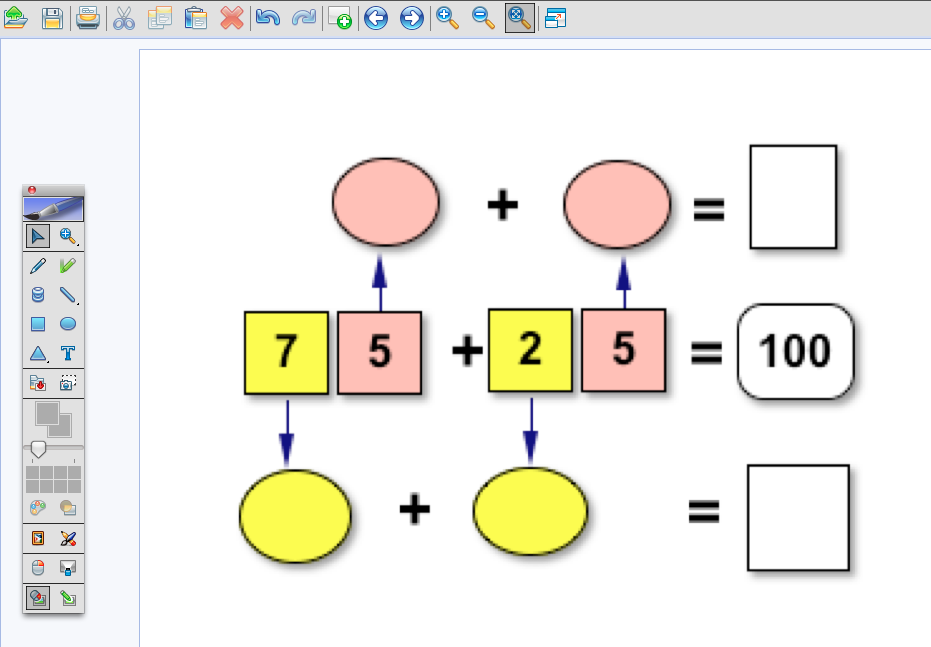
These activities can be used independently or...


Factor Product Puzzles.ist
Match the decimals.ist

...screen capture parts of them and add to IWB notebook software and turn into teaching activities.


Have several pages of the same activity, so that you can start the children off on it and then leave them to continue. You will be able to keep an eye on what the children are doing by watching the projector. Students could be recording in their exercise books as well.

 Adding up to a 100.ink mimio example
 Adding up to 100.notebookSmartboard example
 Adding up to 100.flipchartActivinspire example

Thursday, 14 October 2010

How to record in mimio

Click on mimio Recorder in drop down panel in your notification bar
or click on mimio recorder in the Applications button


Click on the Red record button to start


Start writing on the mimio page. When you have finished writing/speaking click on the recorder icon in the system tray 
Click the Stop button and press the Play button to view the recording. It will open as a movie. When you close recorder, it will ask you if you want to save and it will save as a movie file.
To insert the movie drag onto the mimio page or go to File - Import. Right click on the movie and select Lock. Press the Play button to see your movie.

How could you use this tool?
Record yourself forming letters correctly. Children can practice their letters using the mimio pen and watching the formation of the letters at the same time.

Tuesday, 12 October 2010

Creating Math Activities

Tania wanted to know how to create clock math activities in Inspiration today. In 10 minutes she had made 2 activities that children are going to be using independently and in groups using the mimio.
Step 1: Google 'Blank Clock Faces'. Click on Line Drawing in the side panel options
Step 2: Drag the clock face of your choice onto the Kidspiration or Inspiration page
Step 3: Draw the lines by clicking on the line tool on the toolbar
Step 4: Change the lines into arrows by going to Link - Arrow Direction
Step 5: Add a text box below the clock
Step 6: Click and drag around the whole clock picture and text box, press Ctrl or Command C and paste on another part of the page, repeat until you have covered the page. Save your activity as a template.

Use the same template to create other activities.
The same activities can be created in IWB notebook software as well. Do a search for clock and you will find a clock face, hands and digital display.
mimio, Smart notebook, Activinspire

Saturday, 9 October 2010

Google Calendar widget in blogs

Saw this great idea on Sarah's blog, adding a Google Calendar widget to the side panel in a blog.

Go to your Google Calendar


1. Click on the drop down arrow next to your calendar
2. Click on Share this Calendar


3. Click on Calendar Details
4. Scroll down to Embed this Calendar and click on Customise the colour, size and other options


5. Deselect Print icon, Tabs, Calendar List and Time Zone


6. Click on Agenda


7. Change the width to 250 pixels
8. Change the height to 400 pixels


9. Change the 'Week starts on' to Monday
10. Copy the code
11. Go to your blog, click on Design, click on Add a Gadget
12. Choose the HTML/Java Script, paste code, click OK
13. Move the new gadget to somewhere in your side panel

Thursday, 7 October 2010

Webcams and Kids

With the latest of rollouts of laptops a lot of them have webcams built into them and I am amazed at how many teachers do not realise that they are there! (Apples have had them forever!) This is a valuable resource that you can use with your children.

  • read your story to the camera, turn your book around to show the picture (upload movie to wiki or blog)
  • take a photo of your art masterpiece (print out or post on wiki or blog)
  • read/act a play (place the laptop somewhere where it can see a large area, record your play, edit in Moviemaker or iMovie
  • create your avatar (use the photo editing features of your camera to add effects)
  • record your speech and watch it back (critique and make some improvements)
  • Skype or iChat with students in other classrooms
  • Skype or iChat with invited guests and ask prepared questions
  • take your laptop for a walk and show your viewer what you are seeing
  • record a newscast for podcasts

Monday, 13 September 2010

Creating Reading Activities

I was talking to a teacher today about creating activities for her reading programme. I like to start with my top reading group which means that the other groups will be able to do that reading activity when they reach it. Kidspiration and Inspiration are perfect for this. The activities don't take long to create especially if you create activities using old templates.
Here are a couple of examples using the book Rosie at the zoo.

After they have used these as followup activities they can then be stored in a folder for that reading group as extra reading activities, make sure the books are also kept together in a 'Book Box' so that the students can use them with the computer activities.

Monday, 6 September 2010

Wallwisher and the Christchurch Earthquake

I was working at Willowbank School today and the teacher was talking about how she wanted to use Web2.0 tools with her kids. With all that has happened in Christchurch with the earthquake, I thought it was important for the children to have a forum they could talk about it on. Wallwisher was the obvious choice.
This is a Wallwisher I have set up for the different ways you can use Wallwisher. Thanks to the people who have added to it...great ideas.