Monday, 13 August 2012

Artrage, Photo Apps and Art

Artrage in one of my most favourite art drawing programmes on both the iPad, iPhone/iPod Touch and the computer, and it was created by Kiwis!
Art Rage for the iPhone/iPod Touch (NZ $2.59)
Account: No account necessary for apps
Saving: Saves to the app
Sharing options: Send to Photos, iTunes, email, Facebook, Dropbox or Print

Artrage for the iPad (NZ $4.19)


Artrage has a variety of tools, different types of brushes.
The wide brush adds real thick paint effects and the thin brush paints like water colour.

As well as using Artrage for the obvious, painting and drawing, there is nice feature that is included in the Computer Artrage as well.


You can upload a photo so it appears transparent and draw over the top.
The example below shows the pencil with the photo in the background, to the right without the photo.

Drawn with pencil showing the transparent photo


To the right is an example of the other tools


How could you use this in the classroom?

Students can take photos with their camera and upload to Artrage.
  • Take portrait photos and use the pencil or pen tool to outline the shapes, remove the photo and print out and finish in pencil or pen
  • take scenery or object photos, use the pen tool to outline main lines of the photo, remove photo and print out, finish off in paint

Saturday, 11 August 2012

Formation of letters with Whiteboard Apps

I was talking to a junior teacher today about ShowMe and all the things she could do with it in Maths. She started thinking about how she could use it for letter formation practice. She lets the students practise on the Whiteboard but if she is not standing over them at the time, she doesn't see whether they are forming them correctly.
Some of the following 'Whiteboard' apps are ideal for students to practice their letter formation as they can record what they are doing and the teacher can view it later.

ShowMe (Free for the iPad)
Account: You need to set up an account to save recordings. Students can set up their own accounts if they are using their own iPad or you can set up a class accounts.
Preview before saving: No
Saving: Tap on the padlock to make a ShowMe private, otherwise it will get published to your public ShowMe account on showme.com
Example of ShowMe


Educreations Interactive Whiteboard (Free for iPad)
Account: You need to set up an account to save recordings. Students can set up their own accounts if they are using their own iPad or you can set up a class accounts.
Preview before saving: No
Saving: Tap Done, choose a category
Example of Educreations


Screen Chomp (Free for iPad)
Account: No account necessary but you can login with Facebook
Preview before saving: Yes
Saving: Tap on the screen chomp icon and it will save

In the classroom, I would probably find Screen Chomp at this particular time the best app to use if you do not want to save what the students have done. Students can record what they are doing and then playback to you without saving.

Wednesday, 8 August 2012

Bulk upload of Photos

There are plenty of apps that will send photos from the iPad to the computer, but not the other way round. I have been getting teachers to use Dropbox to transfer selected photos but it is time consuming. I asked the question on the VLN (Virtual Learning Network) 'Does anybody know of a way/app to  transfer lots of photos to iPad but not using iTunes sync?'
I got several responses and here is my summary below. This is what I tried and what worked well starting with the best

  •  emailing photos,  export from iPhoto or Photos library and compress if images are too big, email to email address on iPad, tap on the share button and tap on 'Save # images', the images go to Camera Roll

 Photosync app, costs $2.59 similar to Photo transfer but you need to download the Photosync app companion to your computer to send photos/videos from computer to iPad, photos transferred very quickly. Also transfers to Dropbox, Google Drive, Flickr etc. No limit on number. Buy once and use on all devices (iPods, iPhones)
 
Photo transfer app, costs $4.19 transfers photos and videos from computer to iPad and the reverse iPad to Computer, a little slower than emailing but still worked quite well. Limit of 200 photos at a time. Buy once and use on all devices (iPods, iPhones)


Photo Sort app, costs $2.59 found that one difficult to use with a lot to setup, some teachers would find this tricky to use.


So the free option of emailing worked the best but I think that I will also recommend using Photo sync and/or Photo transfer as well for the other choices they offer.

Tuesday, 7 August 2012

Create Maths games and templates

Use the drawing tool in Google Docs or Presentation to make maths activities.
In the example below, the format of the activity has been made in one Drawing window and then it is copied and pasted and then edited with the new problem.


  1. Go to 'Insert Drawing'
  2. Use the Drawing tools to create your activity
  3. Click 'Save and Close' to insert drawing on to your Doc page
  4. Click once on the drawing
  5. Press Ctrl-C (Command -C) click on the page where the next activity will go and  Press Ctrl-V (Command -V)
  6. Click on the new Drawing, click on Edit and make the necessary changes to alter the activity


And in the example below created in Google Presentation, the slide in the left hand panel has been duplicated (Ctrl-D or Command-D) and then each object gets deleted or duplicated to create a new activity.


These activities can be used for
  • follow up activity
  • home learning
  • e-Portfolio examples of learning 
  • students can also create their own, ask them to duplicate a slide, make this number i.e 37, students have to remove/add tens and ones and then type in the answers
 To turn these into templates, go back to your main Google Docs window with all of your files. Select the file by clicking in the box to the left of the file name, click on More


Click on 'Submit to Template Gallery'


Type in a description
Choose a category
Click Submit Template

    Storage Apps

    Dropbox or Box are great storage options. Register, download and install Dropbox or Box onto your computer.

    Download the app from the App Store
    Dropbox (Free for iPad; Free for iPhone/iPod Touch)
    3 Gig is free
    Stores all types of files
    Downloads an application to your computer that will appear as a main folder in your hardrive. You can save files from your computer directly to Dropbox.

    Box (Free for iPad; Free for iPhone/iPod Touch)
    5 Gig is free
    Stores all types of files
    You have to use an Internet browser to access/upload your files on the website. There is an offer  where you will get an email offering Boxsync which allows you to save files within your computer.

    Some apps will allow you to save to either or both Dropbox or Box, which helps when saving files from the iPad.
    Where Box and Dropbox are most useful for, is storing templates you might create in Word, Pages, PowerPoint or Keynote, templates such as Graphic Organisers that students may use frequently. Once stored in a class Dropbox or Box students can access them easily from their device.

    Thursday, 19 July 2012

    Dropbox for importing files onto iPads

    Some schools aren't able to save to or open files from their server on the iPad. One of my teachers takes a lot of photos and stores them on her laptop, she can't use Photostream as all her photos would end up on other classes iPads as they are all synced to one master computer.
    Therefore Dropbox is a great option. Download and install Dropbox on your computer...

    ...and then download the app from the App Store
    Dropbox (Free for iPad; Free for iPhone/iPod Touch)
    3 Gig is free
    Stores all types of files
    Downloads an application to your computer that will appear as a main folder in your hardrive

    It is good practice to look at the size of your photos before you upload to Dropbox or Box and compress them if they are larger than 500kbs. Ideal size is between 100-500kbs.
    Open the app on your iPad or iPod Touch. Look for the photos, tap on them.
    Click on the Share button and select Save Photo, the photo will appear in the Photo Library.

    Saturday, 14 July 2012

    Saving/Synching to iTunes wirelessly

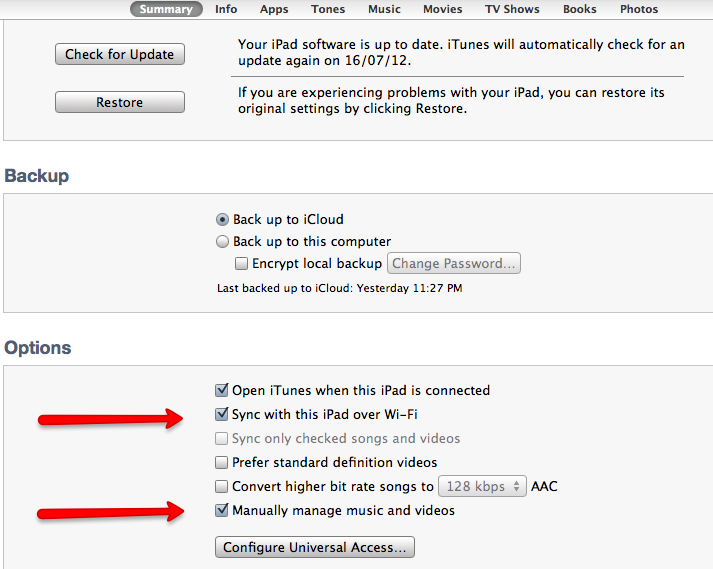
    You can connect your iPad to a computer with a USB cable and find saved work under apps but this can be done wirelessly even with a classroom of iPads to the classroom computer, it does not have to be the master computer that the iPad is synced to.


    Connect your iPad to the computer, click Cancel on any syncing it might ask you to do.


    Select 'Sync with this iPad over Wifi'
    and
    'Manually manage music and videos'
    Click Apply and disconnect iPad.

    Some of the apps that save to iTunes are
    Artrage, Book Creator,  Cartoonatic, Cartoon Studio, Comic Life, Docs to Go, eBook Creator, Explain Everything, Field Notes, Film Director, Garageband, Ghostwriter, Good Reader, Google Earth, GreenScreen, I can Animate, iDiary, iMovie, Ink, Inspiration, iPhoto, iThoughts, Kindle, Note Taker, Noteshelf, Numbers, Pages, Penultimate, Pirate Scribble, Popplet, Puppet Pals, Record, Reel Director, Scribble Press, Sketchbook, Skitch, Storyboards, StoryBuddy, Strip Design, Type Drawing, Vimeo

    For any of the apps, click on the Share button.
    Click on 'Send to iTunes'.

    It might ask what format you would like to send it as i.e. PDF, Word, jpeg, Pages; choose a format.


    Go to iTunes on your computer (remember you do not have to connect your iPad or iPod Touch).
     Down the side you will see the list of all your devices you  have wirelessly connected to.
    Click on the Device.


    1. Click on Apps. 
    2. Click on the App you saved from 
    3. Click on the file when it appears
    4. Click on Save to
    5. Choose where you want to save to and click  Open
    The file will appear in the folder you have saved to on your computer.


    Sunday, 8 July 2012

    Add Facebook and Twitter Streams to Google Sites

    Facebook Stream
    For Facebook go to the Like Box page and paste in your Facebook URL


    Click on Get Code
    Click on iFrame
    Highlight Code
    Copy Code
    Click OK


    Go to Google Sites

    Click on the Edit button

    Click where the Facebook stream will go and click on the HTML button


    Paste in code, click Update and then Save

    Twitter Stream
    For Twitter click where you would like the widget to appear
    Go to Insert - More Gadgets
    Scroll down and click on Twitter Widget
    Click Select
    Click on User Profile
    Type in your User name
    Click Ok
    Click Save

    Sunday, 1 July 2012

    A Research Tip using Safari and Inspiration

    Become a smart researcher using

    Safari: Preloaded on all Devices

     Inspiration: (Free or $9.99 for iPad)


    1. Find your website on Safari by using at least 3 keywords. I am going to do a search on wading birds in New Zealand. So the key words are 'bird native wading' and I will add New Zealand to narrow down the search results.

    2. Open an Inspiration Graphic Organiser
    Create your mindmap
    3. Go to the internet site you have chosen, type in one of the keywords in the Search Box from the question links in the mindmap like 'eats'. I have to use the synonym 'feeds' as eats did not appear under the 'On the Page' links


    Tap on the Find 'feed' under 'On this Page' There are 6 matches for the word on this webpage


    4. Click the next arrow button to see each instance of the word 'feed' until you see a sentence that will answer your question


    5. Tap and highlight a word in the text that answers your question, tap and drag the handles until they highlight all of the sentence and tap Copy


    6. Go back to your mindmap, tap and hold and tap Paste
    7. Go between the Internet site and the mindmap adding information
     8. Don't forget to reference where the information and pictures came from by highlighting the internet address, tap copy and paste into your mindmap.


    Create your own Qwiki

    Go to Qwiki and sign up.
    Add Youtube movies or Vimeo, add pictures from your computer, photos from Flickr streams, Google Maps and text. Export to Youtube and then embed in wikis and blogs.

    Blogging, writing from the perspective of the Character

    Devices are wonderful, interactive communication tools for students to use for blogging ideas and thoughts due to their portability and instant connection to the internet. An engaging task would be to set up a blog based around a novel your students are studying, give each of your students a character to write as and start with one of the conflicts or actions in the story. As the different characters, students can comment and write new blog posts putting forward their points of view and new ideas and insights.
    Students can subscribe to the blog so that they can be alerted when there has been an update. Using devices enables them to be connected quickly and easily.

    Writing like this will promote dialogue, discussion and a deeper understanding of the themes and ideas in a novel.

    The devices are the vehicles for delivery, reading, writing and commenting.

    Blogger: (iPhone and iPod Touch)
    Share: publishes to the Internet, viewed in Browser


    WordPress: (iPhone/iPod Touch; iPad)
    Share: publishes to the Internet, viewed in Browser


    This is an example of a 'Writing as Characters' blog I have started. Feel free to comment as a character on the blog and if you would like to participate as a guest blogger request an invite from info@jsharp.co.nz